Screen Inventory Manager: The Complete Guide to Tracking Your Screens
How to use the free Screen Inventory Manager — Excel import with column mapping, free-format screen IDs, tension logging at every changeover, barcode frame labels, and scan-gun lookup. For shops that buy their screens, not make them.
Every screen printing shop that buys its screens has the same spreadsheet. One row per screen: an ID, a mesh count, maybe a location scribbled in a cell. It can’t hold a photo of what’s burned on the frame. It can’t tell you the tension is drifting. And it definitely can’t help the operator standing in front of three hundred frames wondering which one carries the job that’s due tomorrow.
The Screen Inventory Manager replaces that spreadsheet. It’s a free, single-file, offline tool — double-click it like any program on the screen room PC. This guide walks through the whole workflow: getting your existing Excel data in, receiving new screens, the label-and-scan loop, and the tension tracking that tells you when a screen is dying.
Importing your existing Excel sheet
You don’t reformat anything. Open your spreadsheet, select the whole thing (headers included), copy, and paste it into the tool’s import wizard — or feed it a .csv file.
The wizard reads your column headers and asks one question per field: which of your columns is the screen ID, which is the mesh, and so on. It guesses first (matching common header names, not just exact English ones), you correct anything it got wrong, and columns you don’t care about are simply skipped.
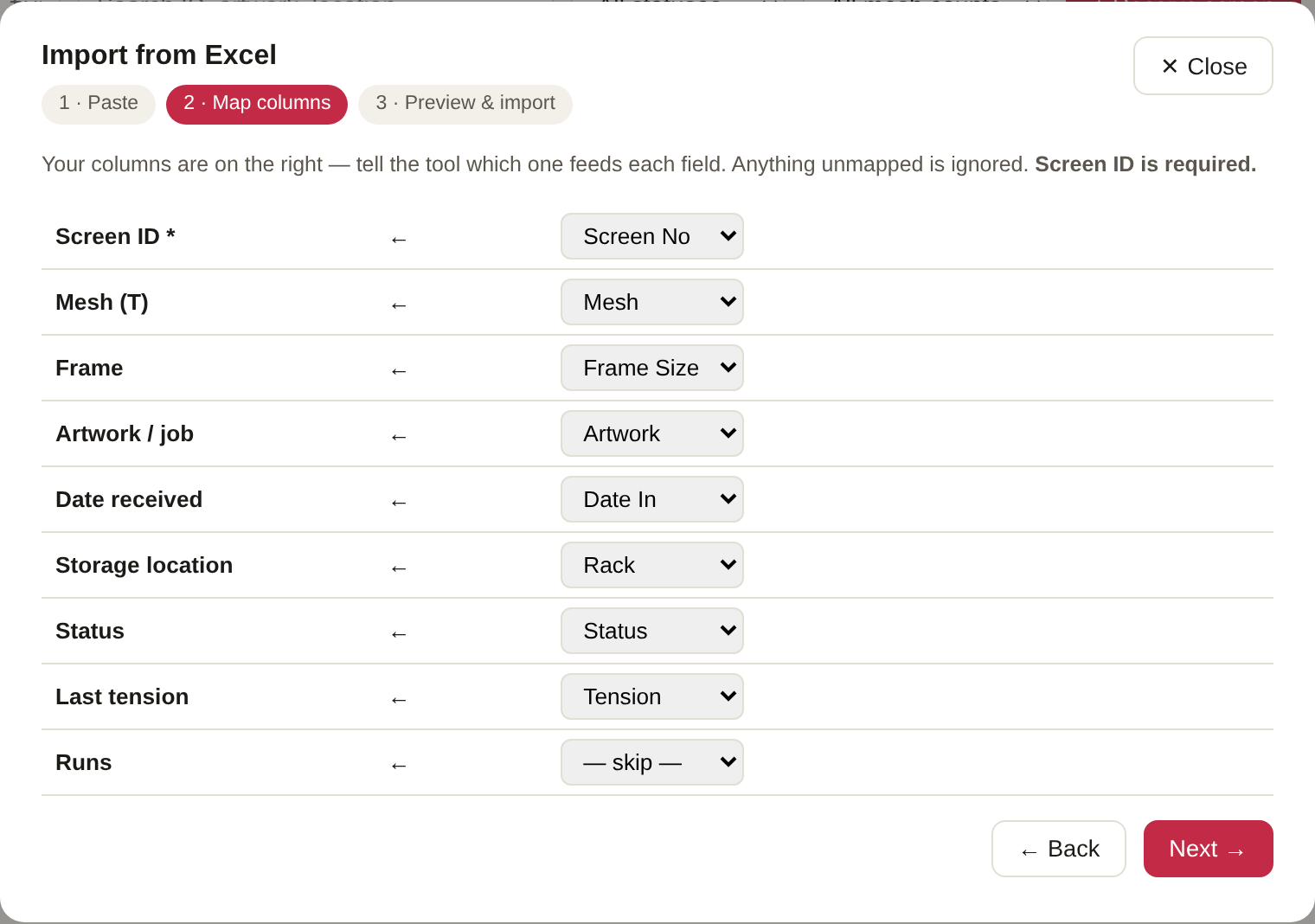
Then you get a preview of the first five rows before anything is written. On import:
- Duplicate IDs are skipped and counted in the report — if “SF-CTH3214” is already in the tool, that row is ignored.
- Your status names become custom statuses automatically. If your sheet says “On rack”, “At reclaim” or “Shipped to customer”, those appear in the tool’s status list, no setup needed.
- Rows without an ID are skipped and reported.
A few hundred screens import in seconds. Map once, done forever.
Receiving a new screen
When a screen arrives from your supplier with the image already burned, click + Receive screen:
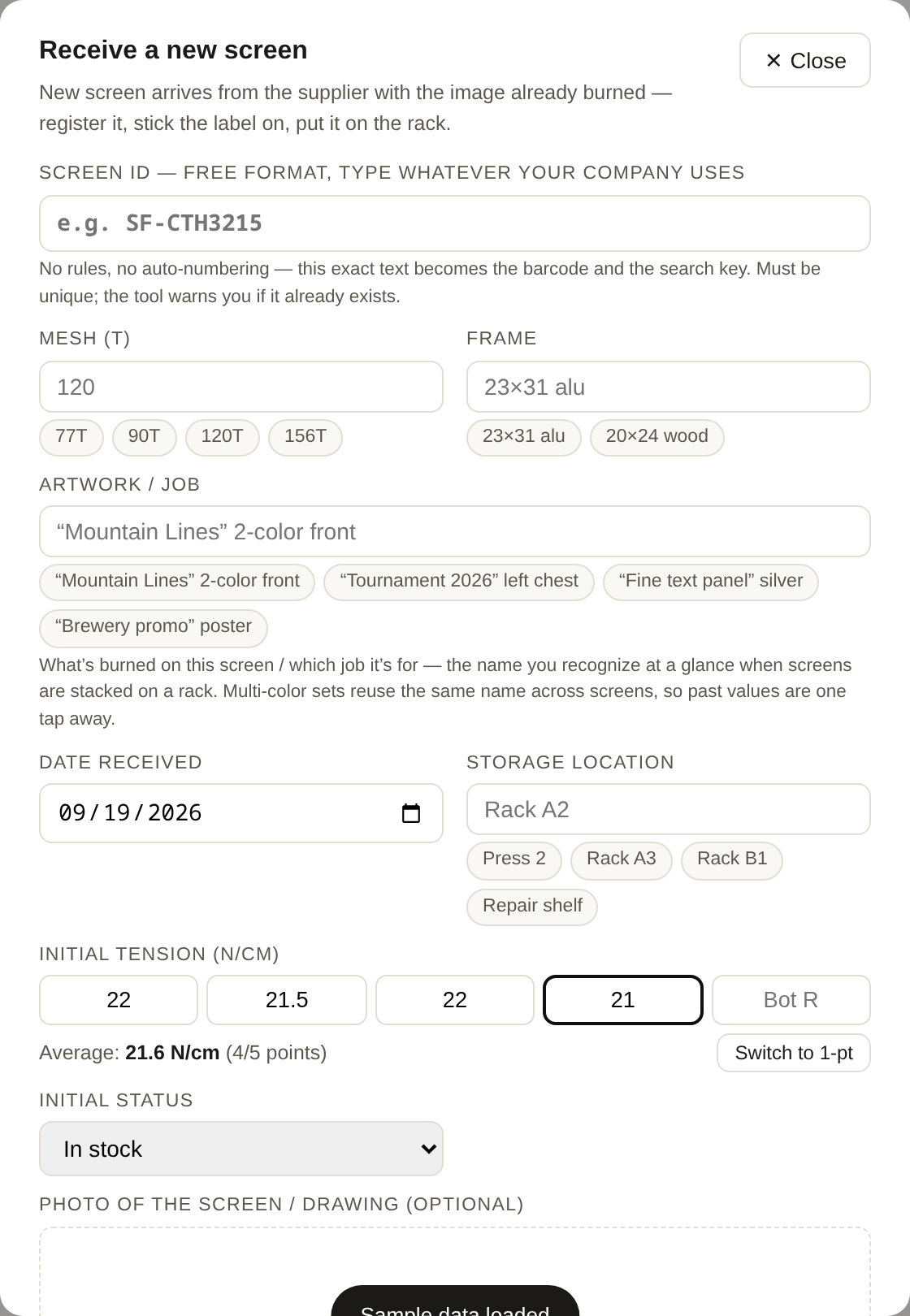
- Screen ID is free-format. Type whatever your company uses —
SF-CTH3214, plain numbers, anything. The tool never generates or reformat your IDs; the exact text you type becomes the barcode and the search key. The only rule is uniqueness, and it checks case-insensitively. - Mesh, frame, location and artwork learn from your data. The four most-used values appear as one-tap chips under each field, and every past value is in the autocomplete. A new value you type once becomes a chip next time. Multi-color sets that share one artwork name across several screens are a one-tap job.
- Initial tension is 5-point by default — center plus four corners, with the average computed live. Shops that measure a single point can switch to 1-pt mode.
- “Open the label designer after saving” is checked by default, because the natural flow is: register → print label → stick it on the frame edge → rack the screen.
The label-and-scan loop
The frame label is what turns a pile of identical aluminum frames into a database. In the label designer you pick the fields (ID, mesh, artwork, date, location, your own custom text line), set the exact label size in millimeters, and get a live preview. The Code 128 barcode of the screen ID is included — it auto-sizes to fit your label with the required quiet zones, and prints through the browser’s print dialog to your Zebra (or any) label printer.
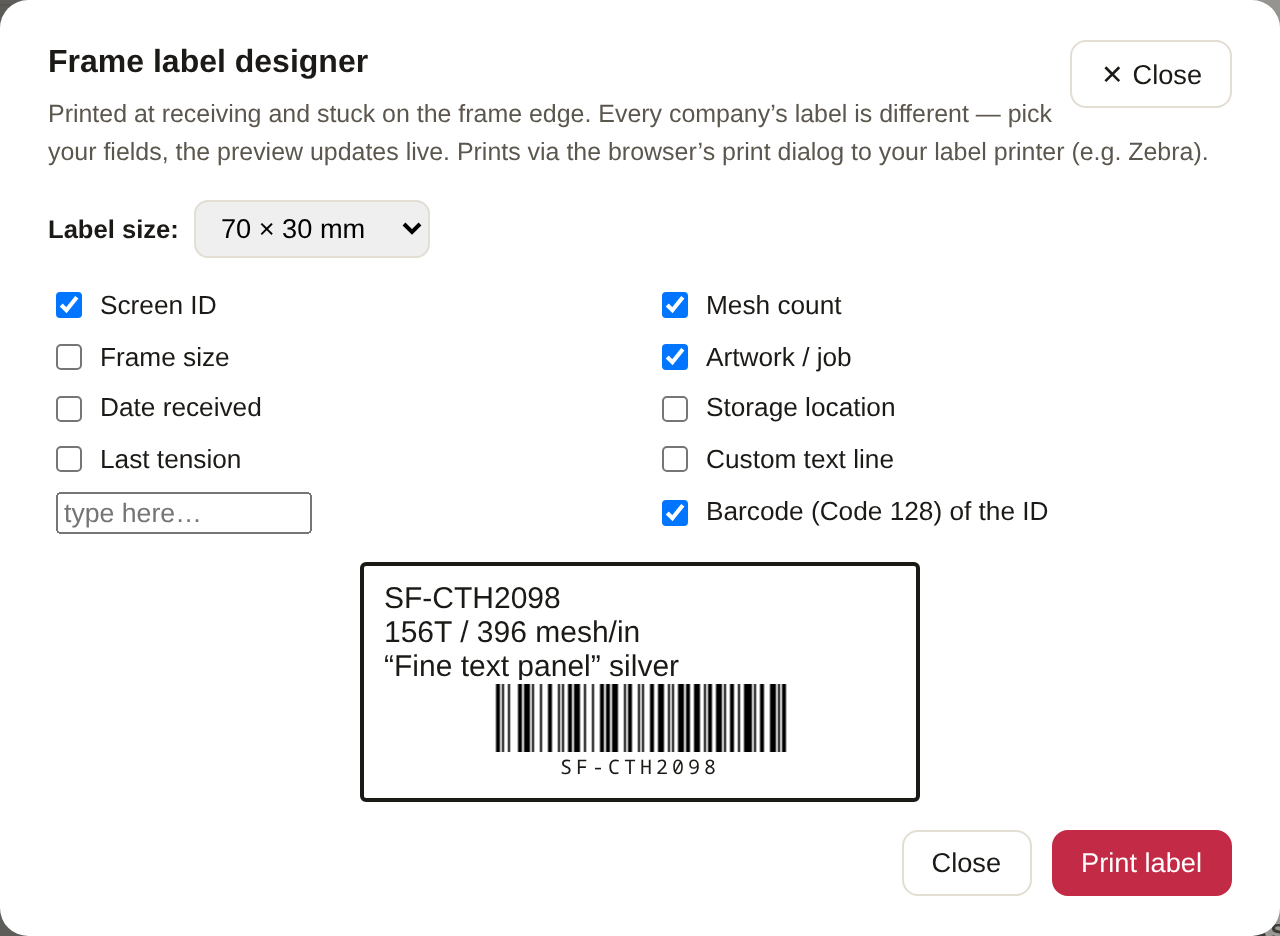
Now the payoff. A USB or 2.4G wireless barcode scanner — the thirty-dollar kind, no driver — is just a keyboard to the computer. With the tool open on any screen, scan a frame label and that screen’s detail pops open. No clicking into a search box first; the tool recognizes scanner input by its speed. No scanner handy? Type the ID into the ⌗ box and hit Enter — same result. An unknown ID flashes red instead of silently doing nothing.
The daily loop becomes: scan at changeover → log tension → set status → done. A few seconds per screen, and every screen builds a full history.
Tension: the number that decides when a screen dies
Tension is a first-class citizen in this tool because it decides print quality and screen life. At every changeover you log a reading — 5-point average or single point — and it lands on that screen’s curve:
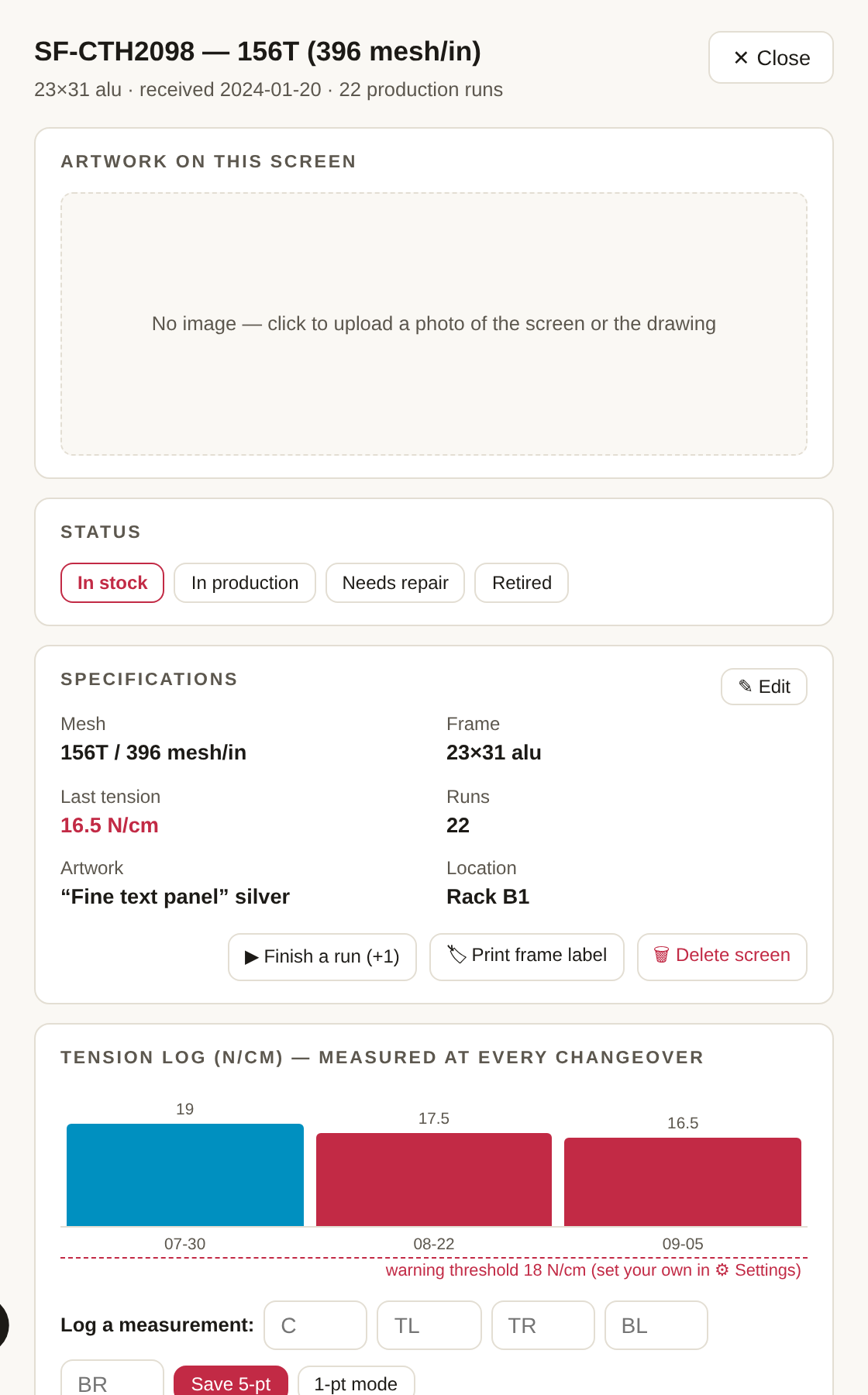
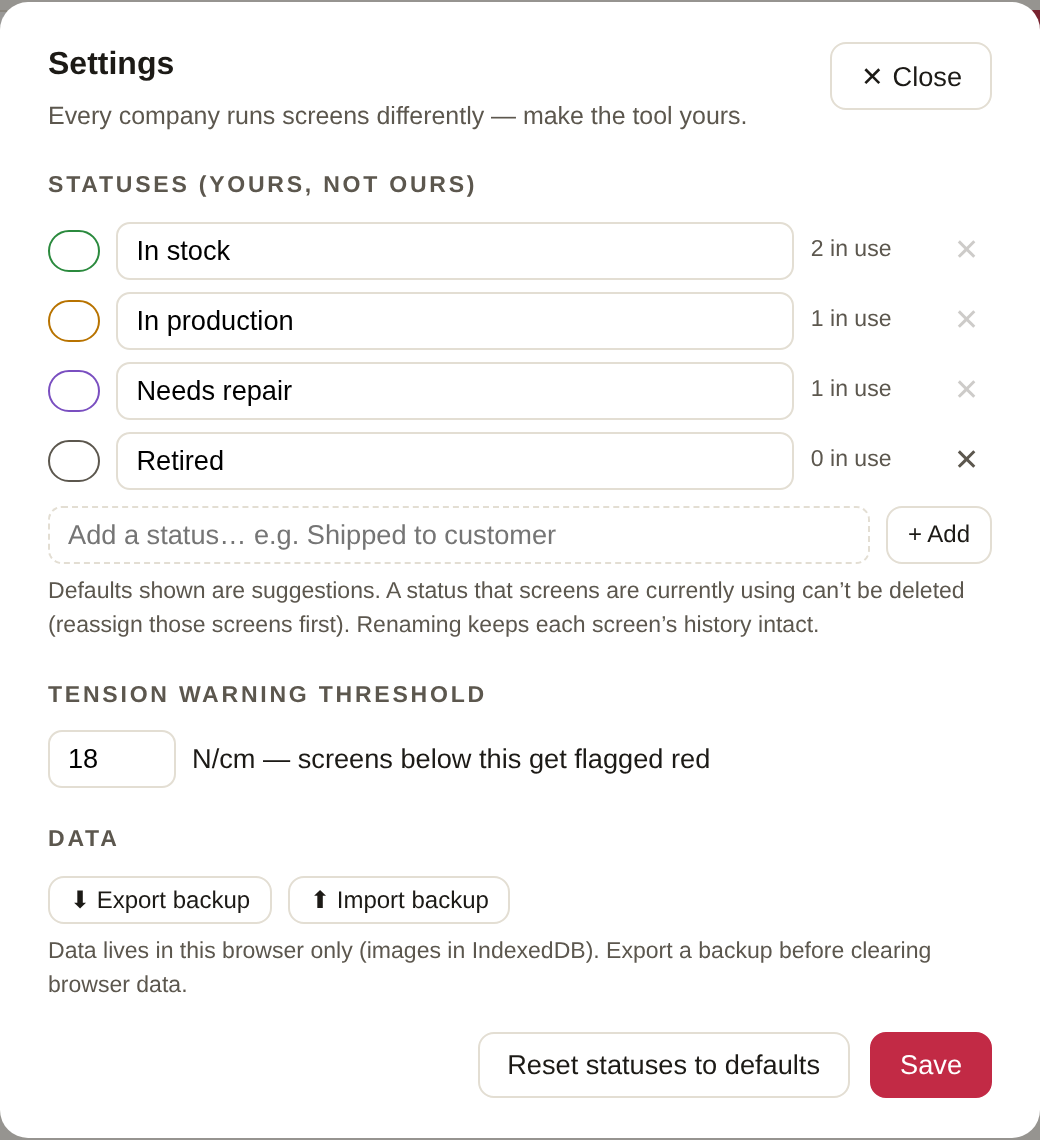
- Readings below your threshold (default 18 N/cm, changeable in ⚙ Settings) show red on the curve and red in the list, and the stats strip counts how many screens are currently below floor.
- The curve keeps the last 30 readings, so you see decay, not just the latest number. A screen that went 23 → 21 → 19.5 is telling you something a spreadsheet never would.
- Finish a run (+1) counts production runs per screen — combined with the tension curve, you learn how many runs your mesh actually survives, per supplier, per mesh count.
Statuses, your way
The defaults (In stock / In production / Needs repair / Retired) are suggestions. In ⚙ Settings you rename, add, or delete statuses — one shop’s flow is a three-state minimal loop, another’s is “On press / At reclaim / Shipped to customer”. Two protections are built in: a status that screens are currently using can’t be deleted (reassign them first), and renaming a status never touches history.
Where your data lives (and how not to lose it)
Everything — screens, photos, tension logs, settings — lives in your browser’s IndexedDB on that one computer. Nothing is uploaded anywhere; the tool makes zero network requests. That means:
- Backup is your job, and it’s one click. The ⬇ Backup button downloads a complete JSON file. Keep one on a USB stick or network drive, especially before anyone clears browser data.
- Moving to a new PC: Backup on the old machine → ⬆ Restore on the new one.
- Photos are compressed to a sensible size on upload, so even a few hundred screens with artwork photos fit comfortably.
Honest limits
It’s a single-user, single-computer tool — no multi-user editing, no cloud sync, no phone app. If two people update the inventory from two PCs, the data diverges (restore a backup to merge back to one truth). The barcode is Code 128 of the ID only, not a QR deep-link, because local data has no URL to link to. And it tracks screens, not the squeegees, flood bars and ink that also wander around a shop — that’s a different tool.
Get started
- Open the live demo and click Load sample data to click around.
- Download the standalone file from the same page — one .html file, double-click, works offline.
- Paste ten rows of your real Excel into the import wizard and check the mapping. If it reads your sheet cleanly, import the rest.
- Print a label, stick it on a frame, and scan it. That’s the moment the spreadsheet dies.