Print QC Logger
If you run visual inspection on printed parts, you know the routine: paper tally sheets, a calculator at the end of the shift, and a defect rate nobody quite trusts. Print QC Logger replaces the tally sheet — Space counts a good part, number keys 1–9 log defect types, and the lot's defect rate updates with every part, so a drifting process is caught at part 50, not at the end-of-shift count.
Every lot is stamped with inspector, batch, and start/end times; every deletion goes to a built-in audit log; and the statistics page turns your records into a defect Pareto, a per-inspector comparison, and a lot-by-lot trend. Inspectors, defect types, and product names are all editable — the defaults are generic screen-printing defects, replace them with the ones you actually track.
This page is the live demo. For daily shop use, download the standalone file — one .html file you double-click like any program. It runs offline, and your records are stored on your own computer, completely separate from this website.
▶ Live demo — sign in with the name you create on first run. Nothing you enter leaves your computer.
Get started in two minutes
- Download the file and open it in Chrome or Edge — double-clicking works, no installation.
- First run creates your admin account — pick a name and a PIN (3+ digits).
- Create your first order — product + batch number. An order groups all inspection lots for that batch.
- Start counting — Space per good part, tap a defect button (or press its number) per defect.
That's the whole learning curve.
A day on the line
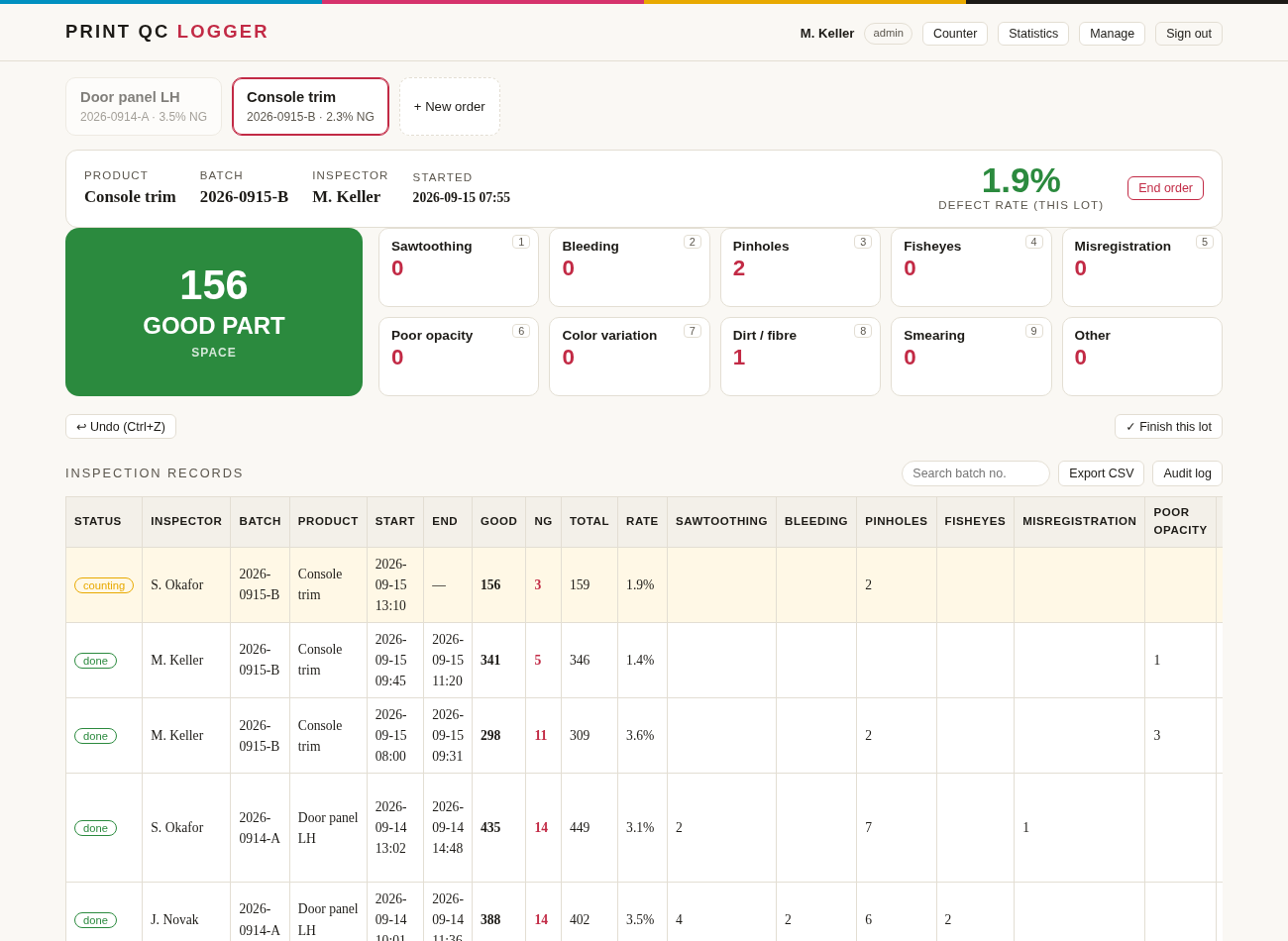
Counting. The green button is good parts; each card is a defect type with its running count for the current lot. Made a mistake? Ctrl+Z walks back up to 8 steps.
Finishing a lot. When a tray, rack, or shift segment is done, hit Finish this lot. You can note the main defect cause and a remark; the lot is stamped with start/end times and a new lot opens automatically.
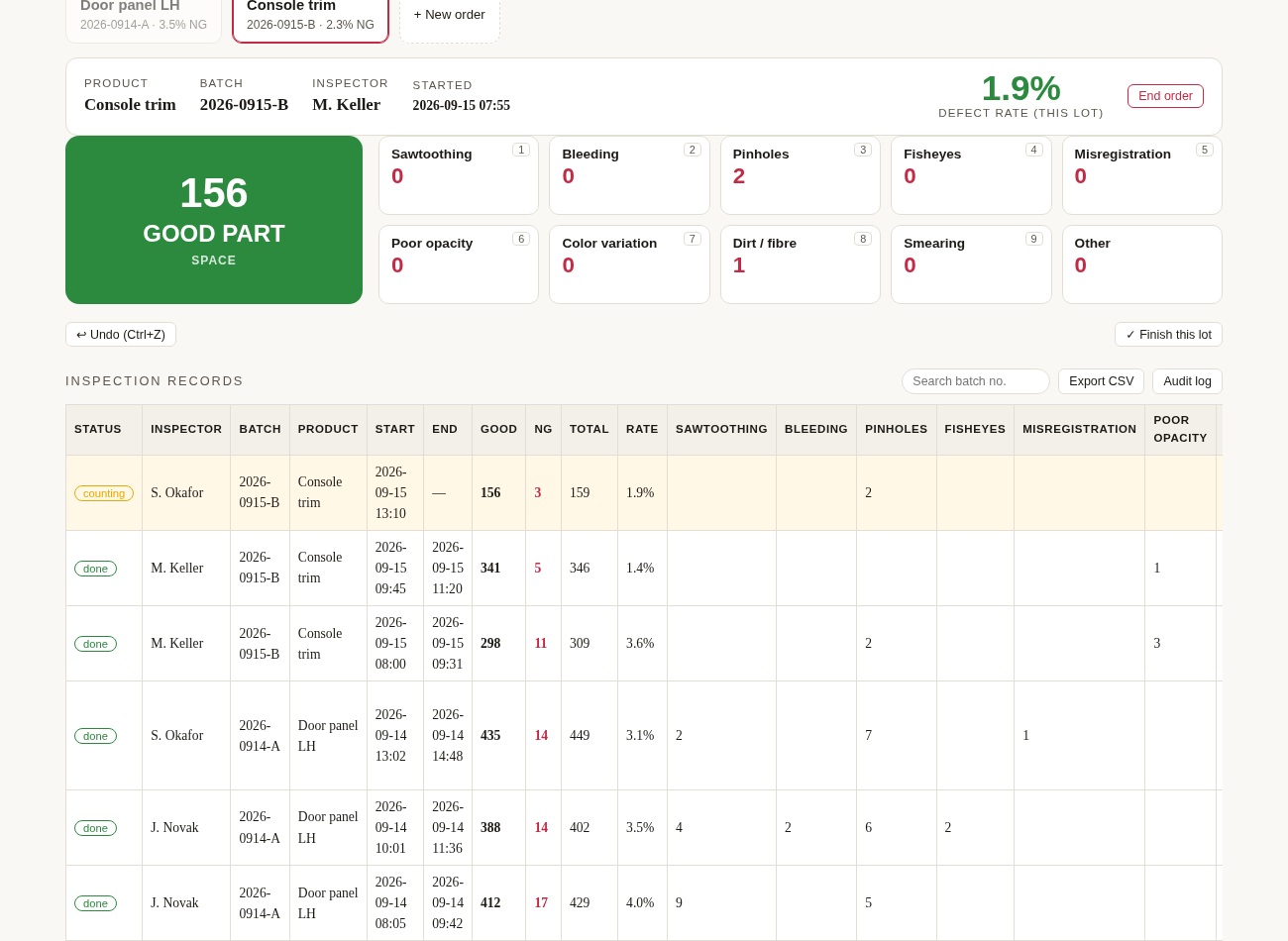
The records table. Every finished lot is one row: inspector, batch, good/NG counts, rate, and per-defect breakdown. Filter by batch number, export everything to CSV for Excel whenever you need it.
Statistics: where the value compounds
One lot tells you about a batch. Twenty lots tell you about your process.
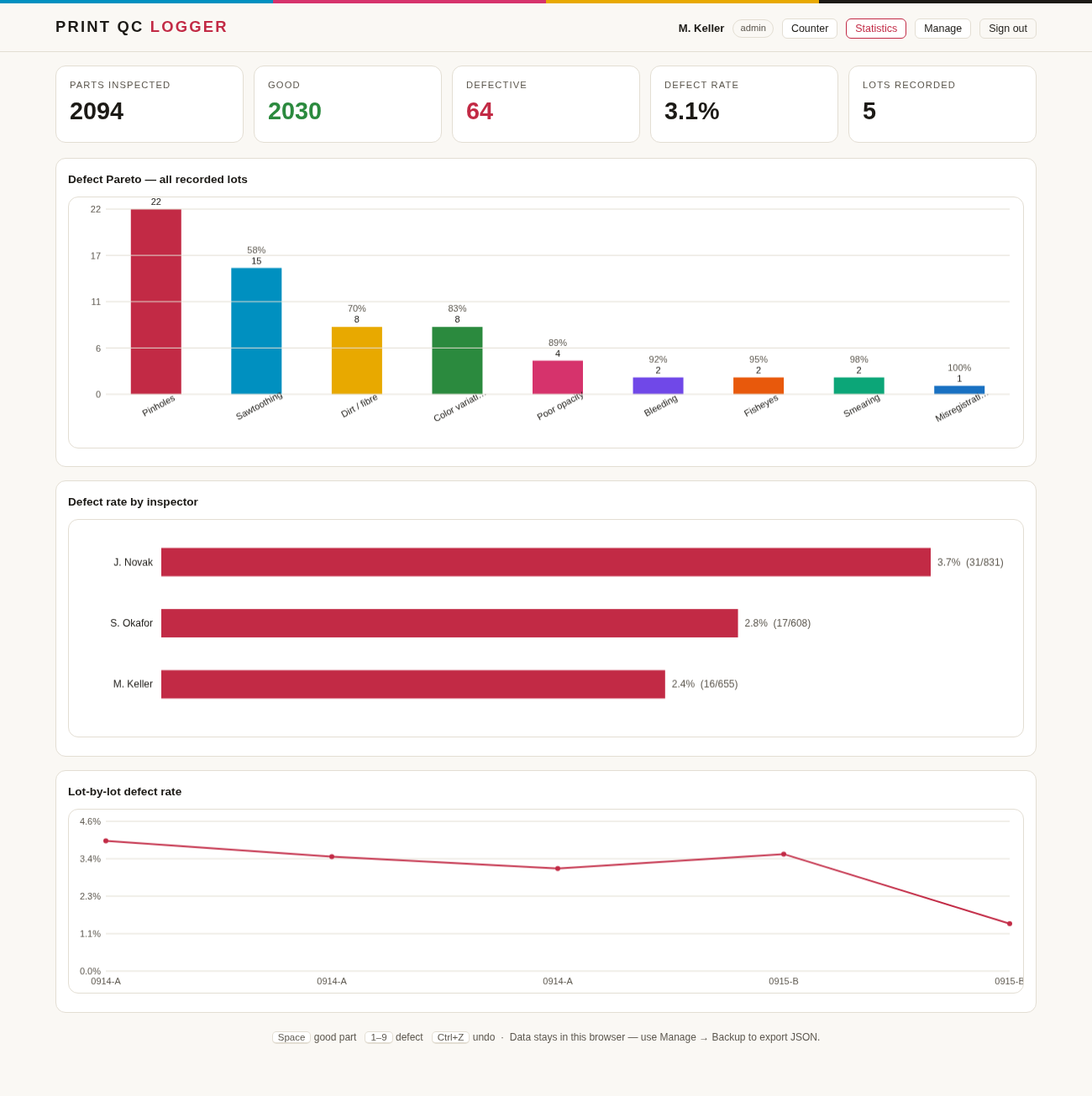
- Defect Pareto — defects ranked by count with cumulative percentage. If pinholes are 35% of your defects, you know what this week's process improvement is.
- Defect rate by inspector — useful for training conversations, and for spotting inspection-criteria drift between people.
- Lot-by-lot trend — see whether the process is stable, improving, or quietly drifting after lunch.
Make it yours
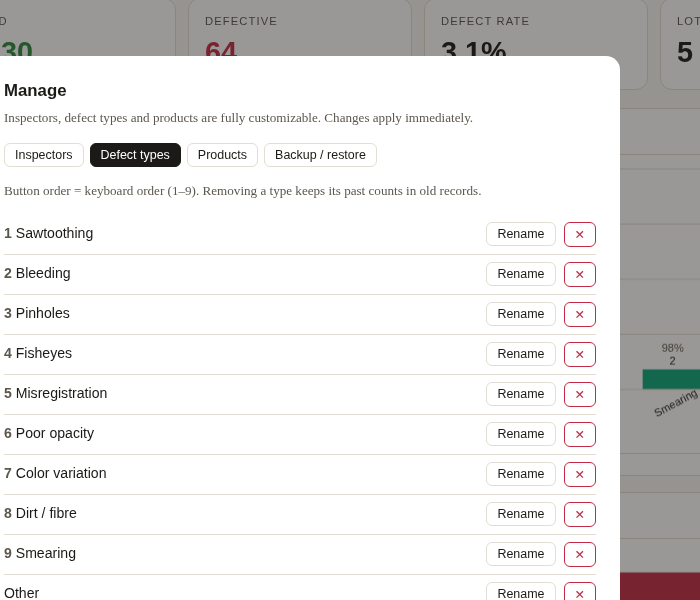
Open Manage (admin PIN required) to customize everything:
- Inspectors — add people, reset PINs, grant admin rights. Each inspector signs in with their own name and PIN.
- Defect types — rename, add, remove. The order here is the button order on the counting screen, so put your most frequent defects on keys 1–3.
- Products — your part list for the order form.
Removing a defect type never touches old records — past lots keep their historical counts.
Your data: honest fine print
- Everything stays in your browser's local storage on that one computer. Nothing is sent anywhere — the file works with the network cable unplugged.
- Clearing browser site data erases it. Use Manage → Backup to export a JSON backup regularly (weekly is a good habit), and re-import to restore or to move to another computer.
- One station, one file. Everyone who inspects on the same computer shares the same data. If you need several stations reporting into one place, you need a small server version — that's a different tool; write us if that's you.
Web page or downloaded file? Both are the same tool. Using it on this page stores data under this website's domain; the downloaded standalone file stores data independently of any website. If you will use it daily, use the download button at the top of this page. The two copies do not share data; move between them with Export / Import JSON.
Who this is for
Small and mid-size screen print shops doing visual inspection of flat or formed parts — automotive trim, membrane overlays, nameplates, panels. If your QC record today is a paper form and a calculator, this is the upgrade that costs nothing.